Appearance
Customers
Last updated: 2026–08-19
The Customers section is where you look up an individual who has applied through your tenant, see every application they’ve submitted, and control whether they can apply again. Use it when you need to check an applicant’s history before making a decision, or when you need to stop a specific email address from submitting further applications.
Open it from Agent Dashboard with the Customers button — it is not a sidebar item.
How it works
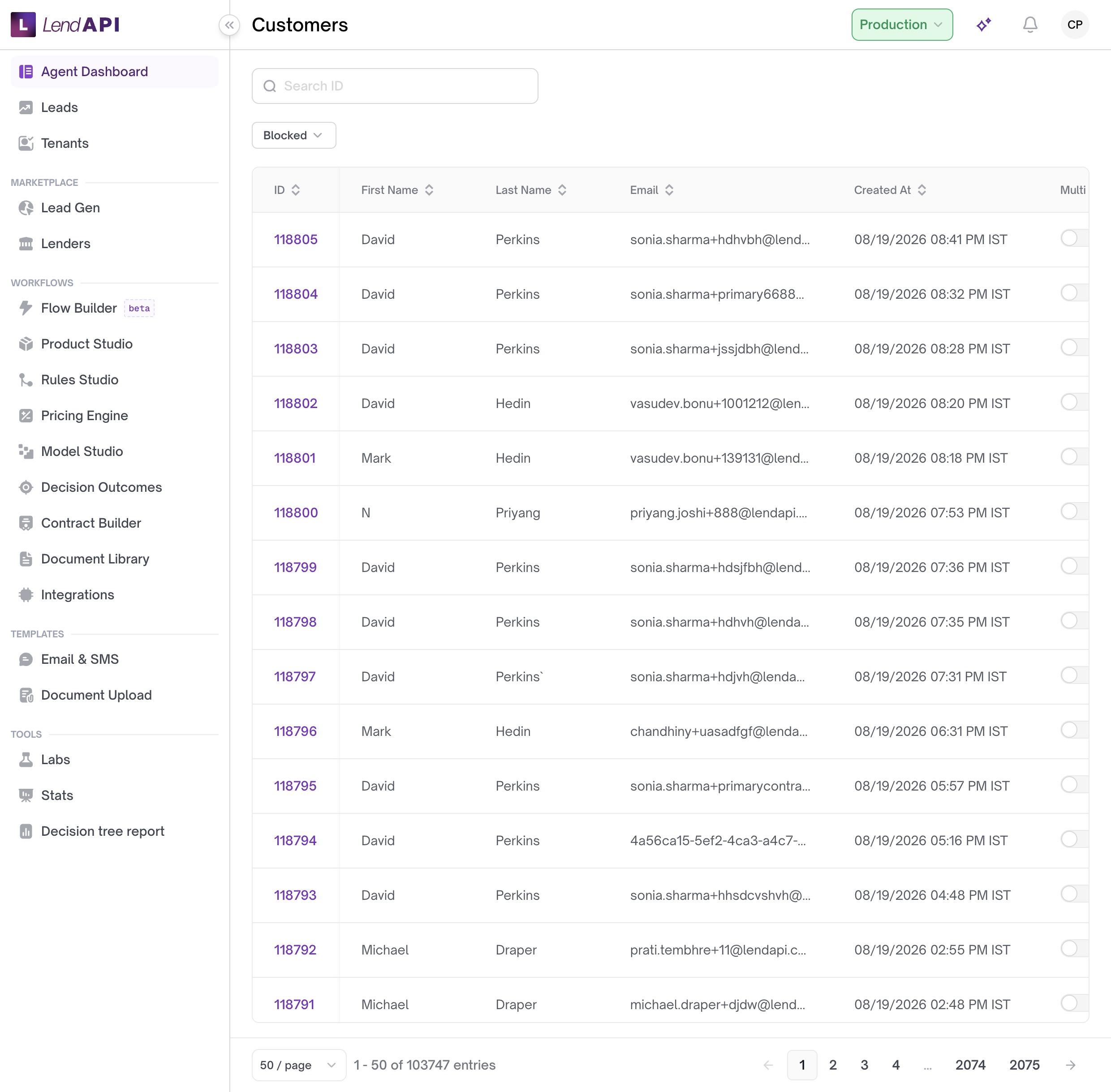
The Customers list shows one row per customer, with these columns:
- ID — the customer’s internal ID. Click it to open their application history.
- First Name / Last Name
- Created At — when the customer record was created.
- Multi App. — a switch showing whether this customer is allowed to submit more than one application using the same email address.
- Blocked — a switch showing whether this customer is currently blocked from applying.
- An action column with an arrow button that also opens the customer’s application history.
You can click the ID, First Name, Last Name, Email, or Created At column headers to sort the list ascending or descending. The Multi App. and Blocked columns are not sortable.
A filter next to a Reset link lets you narrow the list to Blocked or Not Blocked customers.
Search matches exact values (case-insensitive) — first name, last name, email, phone number, or a numeric customer ID. If you type a full name with a space, the system also tries splitting it into different first-name/last-name combinations to find a match.
Which customers you can see depends on your role:
- Tenant Admin, Auditor, and Manager roles see customers across the tenant and all of its subtenants.
- Subtenant Admin sees only customers belonging to their own subtenant.
- Other roles see only customers whose applications are assigned to them.
If your role is Auditor, the Multi App. and Blocked switches are disabled — you can see their status but cannot change it.
Viewing a customer’s applications
Clicking a customer’s ID, or the arrow button in the Applications column, opens a modal listing every application that customer has submitted under the tenant (including applications submitted under any of its subtenants). Each row shows:
- App ID and Lead ID
- Applicant name
- Tenant ID
- Product
- Who the application is assigned to
- Status (for example Pending, Identity Review, Credit Review, Declined, Approved, Booked, Document)
- Outcome
Declined applications display with a red status badge, Approved and Booked applications display green, and the remaining statuses (Pending, Identity Review, Credit Review, Document) display yellow — unless your tenant has configured custom workspace stage colors, in which case the badge uses that color instead.
Click an App ID or the arrow icon on a row to open that application’s full detail page.
Enabling or disabling multiple applications
- Find the customer’s row in the Customers list.
- Click the Multi App. switch.
- A confirmation dialog appears, asking you to enable or disable multiple applications for that customer’s email.
- Confirm. Turning this on allows the customer to submit more than one application using the same email address. Turning it off prevents that.
Blocking or unblocking a customer
- Find the customer’s row in the Customers list.
- Click the Blocked switch.
- A confirmation dialog appears, warning that blocking will stop the applicant from applying to any of your products using that email address, and that they can still apply using a different email.
- Confirm. Blocking and unblocking work as a toggle — the record is kept and reactivated if you block the same email again later.
Worked example
An underwriter needs to review every application filed by a customer named Elena Cho before deciding on her latest $25,000 debt consolidation application.
- The underwriter opens Agent Dashboard and clicks Customers.
- She types “Elena Cho” into the search box. The list returns one row: Elena Cho, elena.cho@example.com, created 04/02/2025, Multi App. off, Blocked off.
- She clicks the row’s ID to open the applications modal.
- The modal lists two applications: App ID 1042, a $25,000 Debt Consolidation application currently in Credit Review (yellow badge), and App ID 887, a $10,000 Personal Loan that is Declined (red badge).
- She clicks the arrow next to App ID 1042 to open the full application detail page and continue the review with the prior decline visible in context.
Use case
A tenant administrator suspects an applicant is trying to reapply after a decline by using a slightly different name but the same email address.
- The administrator opens Customers and searches for the email in question.
- The record shows one customer with two applications: an earlier $8,000 personal loan that was Declined, and a new $15,000 application in Pending status.
- The administrator clicks the Blocked switch on the customer’s row.
- A confirmation dialog reads: “Block [name]? Toggling this would blacklist applicant and they can no longer apply to any of your products with [email]. They can still use a different email to create an application.”
- The administrator confirms. The Blocked switch turns on, and that email address can no longer be used to submit new applications to this tenant. The applicant could still apply with a different email address.
Best practices
- Search using the applicant’s full name or full email — search matches exact values, not partial text, so a partial name or email won’t return a match.
- Review a customer’s full application history in the Applications modal before making a decision on a new application. It shows outcomes across the tenant, including subtenants.
- Block a customer only when you intend to stop every application tied to that specific email address. Blocking does not stop the person from applying with a different email.
- Treat blocking as a deliberate action — it requires confirmation because it affects the customer’s ability to apply at all.
- If a user needs to manage Multi App. or Blocked status and can’t, check whether their role is Auditor. Auditors can view but not change these switches.
In this section
- Customer list and detail – View the customer list, open a customer, and see their applications and actions (email cleanse, block).