Appearance
Agent dashboard
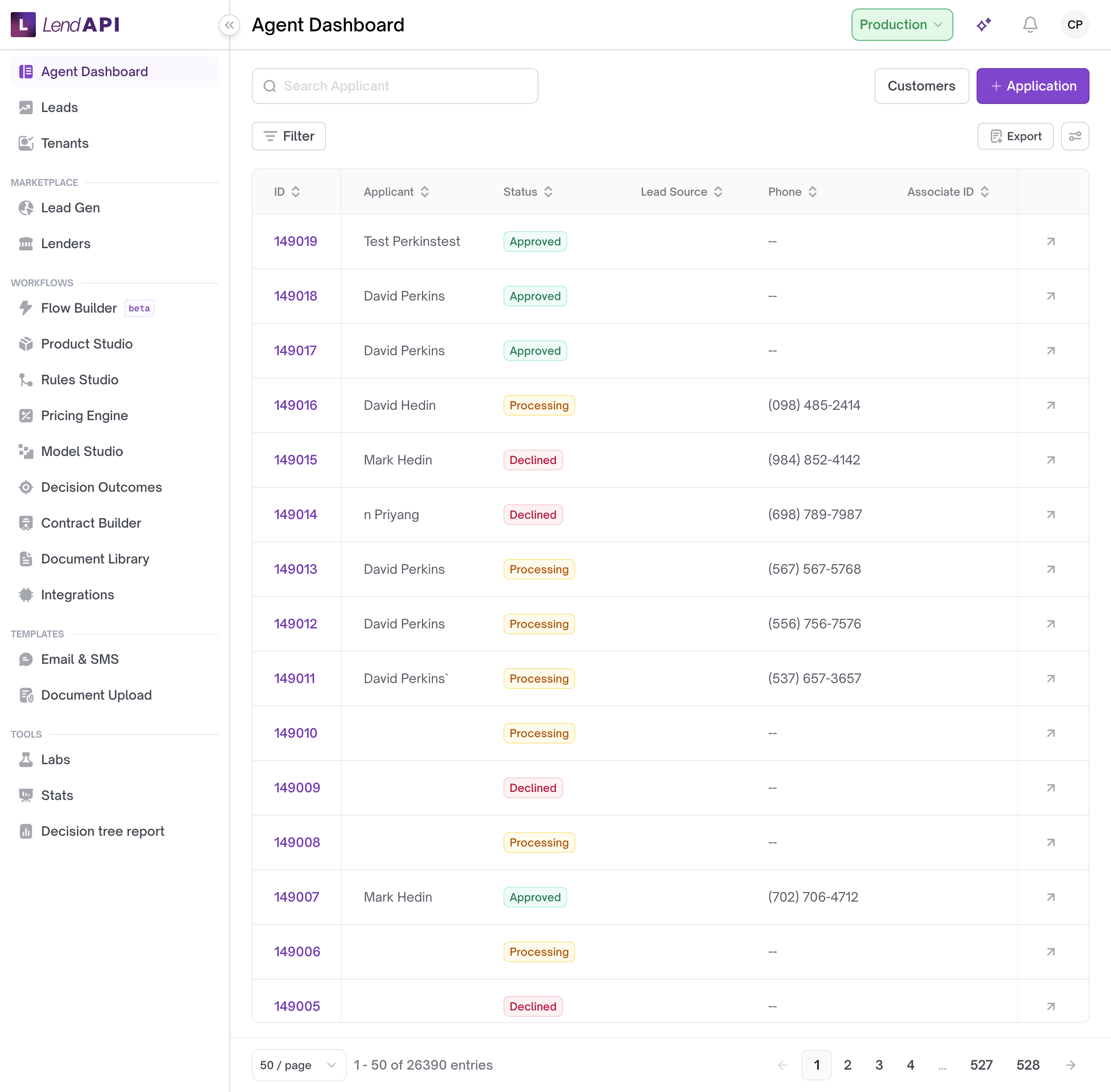
The Agent Dashboard is your primary workspace for reviewing and working loan applications. In the sidebar it is labeled Agent Dashboard. You search and filter applications, customize which columns you see, open records for underwriting actions, and move work through your queue.
In this section
- Use cases and scenarios — Day-in-the-life examples for CSRs, underwriters, and managers
- Step-by-step workflows — How to search, filter, customize columns, export, and open applications
For shared list behavior (pagination concepts, opening detail), see also List and filters.
Overview
The Agent dashboard shows applications your role is allowed to see. Each row is one application (or a parent row that expands to show linked co-applicants when your tenant uses multi-applicant flows). The page loads filter options and your column layout from LendAPI when you sign in; changes you make to columns are saved to your user profile and apply the next time you open the dashboard.
Each application row carries a status (with a color-coded badge), an assigned agent, a product name, and any tags applied to it, each tag shown as a colored pill. When your tenant has lead buy or sub-tenants enabled, the row and filter set also expose lead source and sub-tenant information.
What you can do here:
- Find applications by ID, applicant name, or phone
- Filter by status, product, assignee, tags, sub-tenant, and (when enabled) lead source
- Sort by sortable columns such as ID, Applicant, Last Updated, and Assigned
- Show, hide, and reorder table columns
- Export the list to CSV (most roles)
- Start a new application from an enabled product (most roles)
- Open Customers or jump into an application’s detail page
Worked example
An underwriter named Priya needs to find an application for a customer who just called about a personal loan.
- Priya opens Agent Dashboard from the sidebar.
- She types “Maria Chen” into the search field (which cycles between Search ID, Search Applicant, and Search Phone) and presses Enter.
- The table refreshes to show one matching row: application ID 48213, product Personal Loan A, status badge Review, tag pill VIP, assigned to Priya.
- She confirms this is the right record by checking the Last Updated column, then clicks the View Application arrow in the Action column to open the detail page and continue the review.
Because tags and status are visible directly in the row, Priya does not need to open the record just to confirm where it stands — only to act on it.
Use case
A regional lender wants each underwriter to work only their own assigned applications, while managers keep a full view of the tenant’s book.
- Underwriters and CSRs see only applications assigned to them when they open the dashboard, so their queue stays focused.
- Managers and Tenant Admins see all applications for the tenant, and can use the Assigned filter to check any individual underwriter’s queue or find unassigned work.
- If the lender also runs a sub-tenant (a branch or white-label partner), a Subtenant Admin sees only that sub-tenant’s applications, using the Tenant ID filter and column when sub-tenants are enabled.
This scoping means the same dashboard page shows different data depending on who is signed in, without anyone needing to set filters manually to keep out-of-scope work hidden.
Agent dashboard vs Stats
Do not confuse the Agent dashboard with Stats:
| Area | Sidebar label | Purpose |
|---|---|---|
| Agent dashboard | Agent Dashboard | Operational queue: search, filter, and work applications |
| Stats | Stats (under Reports) | Embedded analytics/reporting view for Tenant Admin, Manager, and Auditor roles |
Stats uses a separate page (/stats/) and an embedded report when your tenant has configured it. See Tenant dashboard for Stats setup. Day-to-day application work stays on the Agent dashboard.
Who uses it
Typical users:
| Role | How they use the Agent dashboard |
|---|---|
| CSR / Support Rep | Find applications by applicant or phone, check status, open detail for customer questions |
| Underwriter / Reviewer | Filter Assigned to self, sort by Last Updated, open apps for decisions and documents |
| Analyst | Broader visibility on parent or sub-tenant books (depends on tenant structure) |
| Manager / Tenant Admin | Full-tenant queues, status filters, export, assignment oversight |
| Subtenant Admin | Applications for their sub-tenant only |
| Auditor | Read-only: can search, filter, and open applications; cannot export, add applications, or change column layout |
Applicants use a different Applications experience in the applicant portal—not this Agent dashboard.
Prerequisites and access
- Sign in to your organization’s LendAPI URL with a staff account (not an applicant login).
- Role — Your administrator assigns a dashboard role (Underwriter, CSR, Manager, etc.). If Agent Dashboard is missing from the sidebar, ask your Tenant Admin.
- Environment — If your tenant supports both modes, use the header control to switch Sandbox or Production. Sandbox uses test data; Production is live. Some accounts are restricted to one environment only. Switching environments reloads the app and refreshes the list.
- Products — At least one active product is required before the empty state offers meaningful next steps; new applications are started from the Application menu when products exist.
Legacy URL (older shell): /v2/application/applications/ may still route to the same experience depending on your deployment. The current v2 path is /application/applications/.
Opening the Agent dashboard
- Sign in to the dashboard.
- In the left sidebar, click Agent Dashboard.
- The page title at the top reads Agent Dashboard. The main area is a searchable, filterable table.
UI walkthrough
The layout has four regions: header actions, search, filters and table tools, and the applications table with a pagination footer.
Top row: search and navigation
| Control | Label in UI | What it does |
|---|---|---|
| Search field | Placeholder cycles: Search ID, Search Applicant, Search Phone | Type a value, then press Enter or use the search button. Clears when you use the clear control after a search. |
| Customers | Customers | Opens the customers list (/application/customers/) |
| Application | Application (primary button with + icon) | Dropdown of products; choosing one opens the applicant flow for that product in a new tab. Hidden for Auditor. |
Filter bar
When applications exist, a row of column filters appears above the table:
| Filter | Column / filter name | Notes |
|---|---|---|
| Status | Status | Single-select; options reflect stages in your tenant (e.g. Processing, Review, Approved, Declined). Counts come from the current filtered set. |
| Lead source | Lead Source | Shown only when your tenant has lead buy enabled. |
| Product | Product | Multi-select product names. |
| Tenant ID | Tenant ID | Shown only when your tenant uses sub-tenants. |
| Assigned | Assigned | Assignee or unassigned. |
| Tag | Tag | Includes Untagged plus your tenant’s tags. |
| Reset | Reset (with refresh icon) | Clears all column filters. |
Filters combine with search (AND logic). Changing a filter refreshes the list and may update other filter dropdowns so counts stay consistent. If a saved filter value no longer matches a valid product, tag, assignee, or sub-tenant, the dashboard clears that stale filter automatically rather than showing an invalid selection.
Table tools (right side of filter bar)
| Control | Label | Who can use it |
|---|---|---|
| Export | Export | Downloads applications as CSV. Hidden for Auditor. |
| Column settings | Gear icon (no text label) | Opens column customization. Hidden for Auditor. |
Applications table
Pinned columns (always present in the layout):
- ID (left) — Application ID; link to detail. Sortable. When multi-applicant mode is on, a row with co-applicants shows an expand control to reveal child rows.
- Action (right) — View Application (arrow icon) opens the application detail page.
Configurable columns (tenant defaults; you can change visibility and order):
| Column header | Typical content |
|---|---|
| Lead Source | Campaign or source name (if enabled) |
| Applicant | Applicant name (truncated with tooltip if long) |
| Phone | Formatted phone, or -- if none |
| Tenant ID | Sub-tenant name (if sub-tenants enabled) |
| Tag | Tag pills, or -- |
| Product | Product name |
| Last Updated | Date/time in tenant timezone |
| Store ID | Store identifier when used |
| Associate ID | Associate identifier when used |
| Assigned | Assignee name or -- |
| Status | Status badge (see table below) |
| Outcome | Decision/outcome label when present |
Tag pills carry the color set for that tag by your Tenant Admin, so frequently used tags (like VIP or Fraud Hold) are visually distinct at a glance.
Status badges (labels shown in the table):
| Badge label | Meaning (operational) |
|---|---|
| Review | In manual or active review |
| Doc Requested | Documents requested from applicant |
| Doc Received | Documents received, pending review |
| Approved | Approved |
| Declined | Declined |
| Booked | Booked / funded in pipeline terms |
| Withdrawn | Withdrawn |
| Incomplete | Pending / incomplete |
| Completed | Completed |
| Default | Default state label |
| Processing | Early processing (may appear as raw label if unmapped) |
Your tenant’s workflow may not use every status. Filter options use the backend stage list (e.g. Processing, Review, Approved)—labels in the filter dropdown match those names.
Column customization (gear menu)
Open the gear button to manage columns:
- Selected columns — Drag the handle (six dots) to reorder. Click X to remove a column (except core fields).
- Add Columns — Footer item toggles a checklist of available columns; checking adds a column immediately. The list of available and currently selected columns is loaded per user from your profile.
- Applicant and Status cannot be removed from the selected set. ID is always part of the saved layout internally.
Your layout is saved automatically when you add, remove, or reorder columns.
Pagination footer
The table footer shows page controls and total records. Default page size is 10 applications per page unless your deployment changes it. Use the footer to move between pages; search and filters apply across the full result set, not only the current page.
Empty states
| Message | When it appears |
|---|---|
| No Applications Yet | No applications in the tenant and no active search/filters |
| No Applications Found | Search or filters returned zero rows |
Actions may include Read Docs and Go to Product Studio (for non-Auditor roles) when the list is empty.
What you see by role (data scope)
LendAPI scopes which rows load before you apply filters:
| Role group | Applications shown |
|---|---|
| Tenant Admin, Manager, Auditor | All applications for the tenant (certain internal product types excluded) |
| Subtenant Admin | Applications for their sub-tenant |
| Analyst | Parent-tenant analysts: parent tenant book; sub-tenant analysts: sub-tenant book only |
| Other roles (e.g. Underwriter, CSR, Reviewer, Support Rep) | Applications assigned to you |
If you expect to see an application but do not, check Assigned, sub-tenant filters, and environment (Sandbox vs Production).
Sample setup
Per-user column layout (supported today)
There is no separate “agent dashboard settings” screen for admins. Each user customizes their own table:
- Open Agent Dashboard.
- Click the gear icon → Add Columns to add optional fields (e.g. Tag, Phone, Store ID).
- Drag to order columns for your workflow (e.g. Status, Assigned, Last Updated, Applicant).
- Sign out and back in—your layout persists on your profile.
[NEEDS PM INPUT: Whether tenant-wide default column layouts for all agents are on the roadmap; today only per-user agent_dashboard_columns on the profile is implemented.]
Sub-tenants and lead buy (tenant configuration)
- Sub-tenants — When enabled, the Tenant ID column and filter appear so agents can scope work by branch or white-label partner.
- Lead buy — When enabled, Lead Source appears for marketplace-sourced applications.
- Tags — Tenant Admins maintain the tag catalog; agents apply tags on the application detail page.
Best practices
- Filter by Assigned before assuming an application is missing. If you have an Underwriter, CSR, or Reviewer role, your default view already shows only applications assigned to you. Use the Assigned filter to check other agents’ queues or find unassigned work — do not assume the tenant has fewer applications than it does.
- Confirm the environment before acting. Sandbox and Production hold separate data. Check the header before searching for a real customer’s application.
- Order columns around your daily task, not around every available field. Add only the columns you use regularly (for example Status, Assigned, Last Updated, Tag) so the row stays scannable. Extra columns you rarely reference make the table harder to read, not easier.
- Use tags for triage, not just labeling. Since tag pills are color-coded and filterable, use a small, consistent tag set (like VIP, Fraud Hold) so agents can filter to the right group quickly. Avoid inventing a new tag for every one-off situation.
- Reset filters instead of stacking them. If results look wrong, use Reset to clear filters and search again from a known state, rather than layering more filters on top of stale ones.
- Do not use the Agent dashboard for reporting. For volume, trend, or performance metrics, use Stats instead. The Agent dashboard is built for working individual applications.
Edge cases and limitations
- Auditor — Read-only on the dashboard: no Export, no Application create menu, no column gear.
- Sandbox vs Production — Separate data sets. Confirm the header shows the environment you intend before acting on an application.
- Sub-tenants — Subtenant Admins and scoped analysts do not see sibling sub-tenants’ applications unless they also hold a broader role.
- Unassigned work — Use the Assigned filter and choose the unassigned option to find apps with no owner (wording in the dropdown comes from your assignee list).
- Multi-applicant — Child applications appear under an expandable parent row; open the parent or child ID / View Application for detail.
- Assign from list — Assignment is done on the application detail page (or related assign dialog), not via bulk actions on the Agent dashboard table.
- Leads — Purchased or inbound Leads use a separate sidebar item (Leads) with a similar table but different status column; that is not the Agent dashboard.
Troubleshooting and FAQ
I do not see Agent Dashboard in the sidebar.
Your role may be applicant-only or restricted. Contact your Tenant Admin.
The list is empty but I know applications exist.
Check Sandbox vs Production, sub-tenant filter, and whether you are limited to assigned applications. Clear filters with Reset.
Search by name does not find the application.
Search supports applicant name, phone (10–11 digits), and application ID (numeric, up to 9 digits for ID lookup). Try ID or a partial name; press Enter after typing.
My columns reset or look wrong.
Another user’s layout does not apply to you. Reopen the gear menu and re-add columns. If problems persist, ask an admin to verify your user profile is not locked by an integration.
Export failed or is missing.
Export is unavailable to Auditors. For other roles, retry when filters are stable; large tenants may take longer.
Status in the table does not match an email to the applicant.
Customer communications may use different wording than internal status badges. Use the detail page Application tab as the source of truth.
Stats shows an error banner.
That is the reporting embed, not the Agent dashboard. See Tenant dashboard.