Appearance
Document Library
Last updated: 2026–08-19
Document Library and Contract Builder sit under Workflows. Document Upload sits under Templates. Together they cover reusable documents, contract templates, and upload templates requested from applicants.
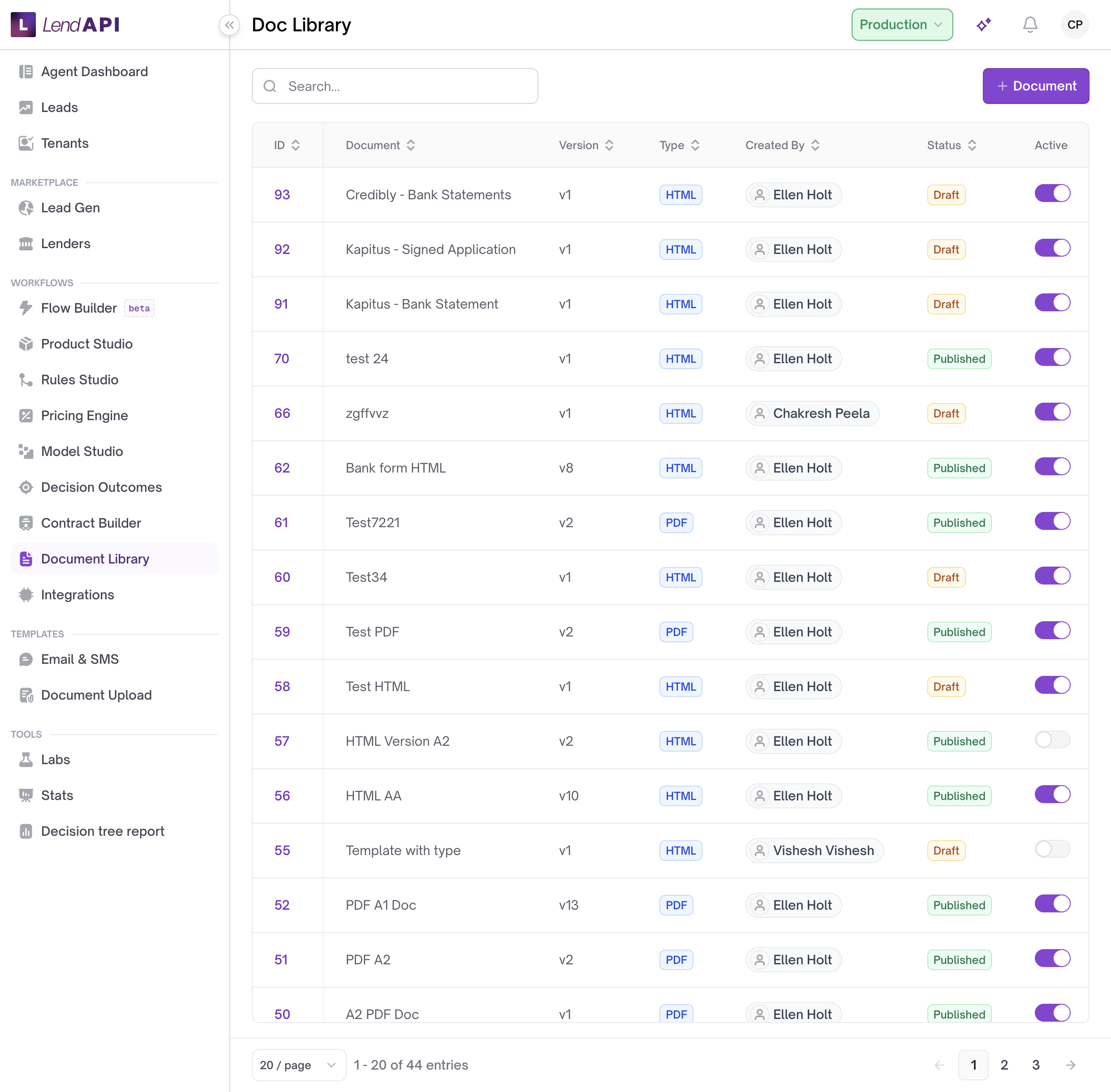
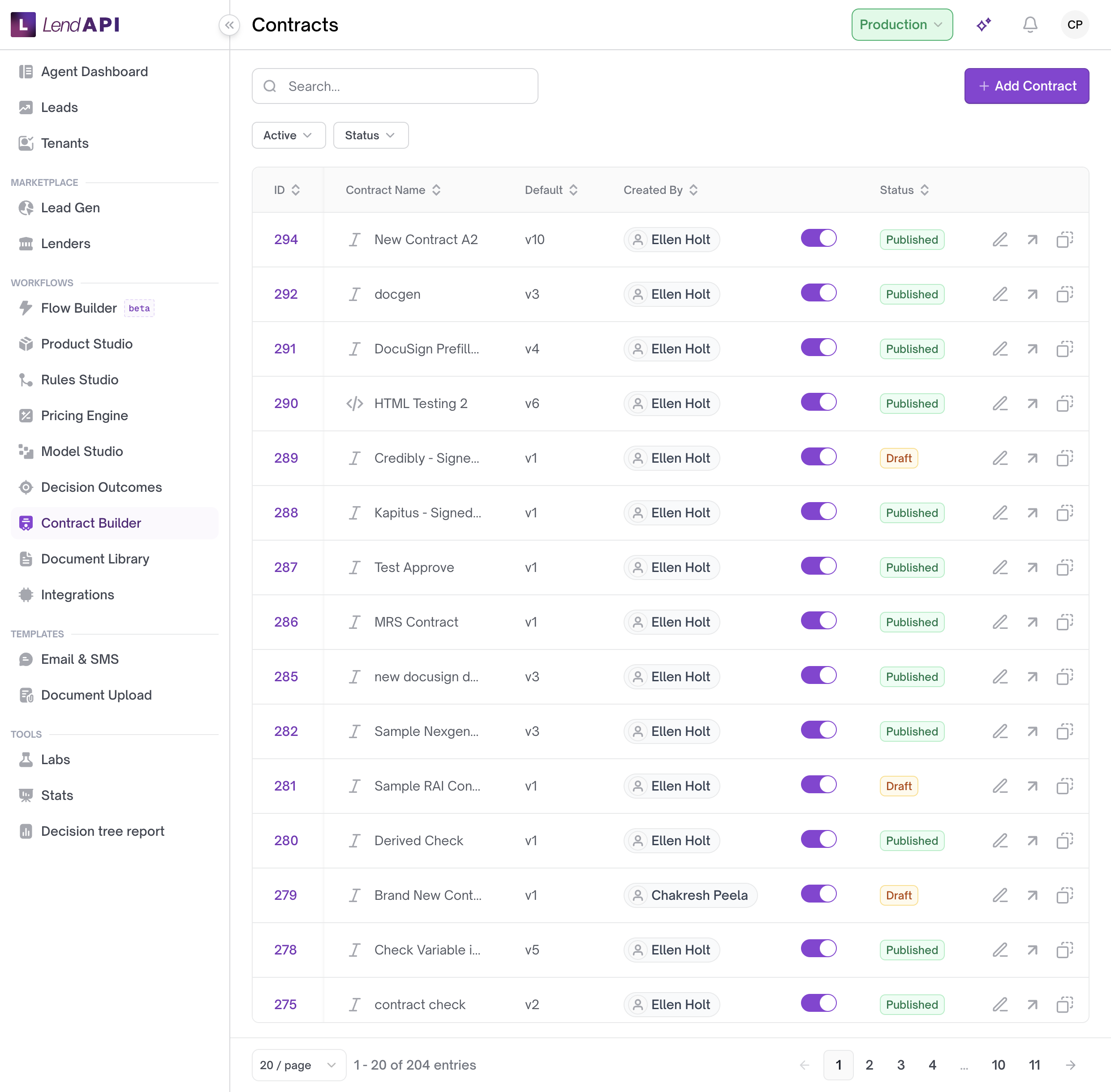
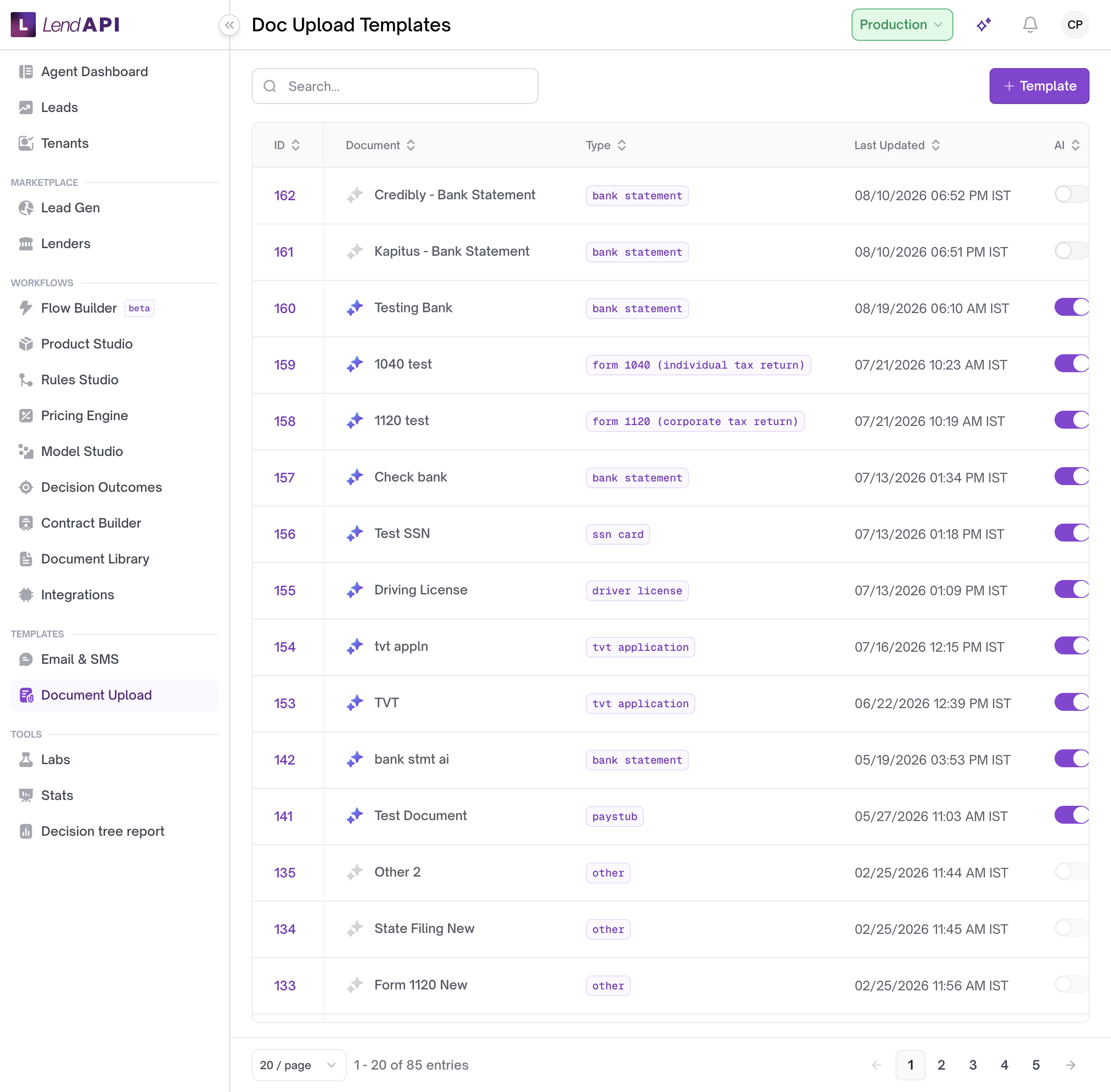
Document Library stores reusable documents. Contract Builder is where you create, version, and publish the loan agreements and disclosures that applicants sign. Document Upload defines templates for files you request from applicants (pay stubs, ID, proof of income). This page focuses on Contract Builder, since that’s where most of the day-to-day configuration happens.
Contract Builder
Contract Builder lets you build the agreement documents (“contracts”) that go out to applicants for signature, tie each one to a loan product, and control who signs it and how.
A contract has:
- A name (up to 60 characters).
- One or more products it applies to.
- A primary signer, and up to five co-signers, each identified by name and email.
- A recipient email template used to notify signers, when co-signers are configured alongside a primary signer.
- A signing method — for example, routing the document through DocuSign for e-signature.
- A body of text (the agreement language itself), which can include images and lists.
Contracts can also be tied to specific decision outcomes and, depending on tenant configuration, to specific states — so a tenant can set up state-specific agreement language and have the system select the right one automatically for a given state.
Creating and cloning contracts
- Go to Contract Builder under Workflows.
- Select New Contract and give it a name.
- You land on the contract editor, where you assign a product, set up signers, and write the agreement body.
To reuse an existing contract as a starting point instead of building from scratch:
- From the contract list, choose Clone on the contract you want to copy.
- Enter a new name. The cloned contract must use a different name than the original — the system rejects a clone that keeps the same name.
- Confirm. You’re taken to the editor for the new, cloned contract, which starts as an independent copy.
The contract list itself can be searched by name and filtered by active/inactive and published/unpublished status, and sorted by name, creation date, creator, version, and status.
Signers and signatures
Each contract supports:
- A primary signer.
- Up to five co-signers, each with their own name and email address.
If you enable the primary signer and also add at least one co-signer, you must select an email template for the recipient notification — the contract can’t be saved without one in that combination.
DocuSign contracts
One of the available contract types routes signing through DocuSign. When you choose that type:
- You must select a DocuSign template (either by picking one from the template list or supplying template data directly). The contract can’t be saved without a template selected.
- Once a template is selected, you can pull in the template’s fillable fields (“tabs”) and map each one to a contract variable — for example, mapping a signature field to the applicant’s name or loan amount.
- If the DocuSign template has fillable fields but none of them have been mapped to a variable yet, the system flags this as a warning so you notice it before publishing.
- You can preview the DocuSign document with its current template and mapping before publishing.
Warnings before you publish
While editing a contract, the system checks for common configuration problems and can surface warnings, including:
- A missing email variable.
- Signing blocks that aren’t configured correctly.
- Variables referenced in the contract that aren’t mapped.
- Missing signer-initial blocks or configuration.
Review any warnings shown on the contract before you publish it.
Versions and publishing
Saving a contract keeps it in draft. Publishing creates a version:
- From the contract editor, select Publish.
- Enter a description of what changed in this version.
- Choose whether to mark this version as the default for the contract.
The version history for a contract shows, for each version: the version number, the description you entered, when it was created and last updated, and whether it’s the current default.
From the version history you can:
- Set as default — mark a different published version as the contract’s default.
- Copy to draft — bring an older version back into a draft so you can edit it further, rather than editing the currently published version directly.
Turning a contract off
You can toggle a contract between active and inactive from the contract list without deleting it. Use this when a contract should stop being used but you want to keep its history and versions intact.
Worked example
A tenant administrator at a credit union needs a signable agreement for a new Auto Refi 36-Month product.
- In Contract Builder, they select New Contract and name it “Auto Refi 36-Month Agreement.”
- They assign the product “Auto Refi 36-Month” to the contract and write the agreement body, including the credit union’s logo and standard terms.
- Because the loan requires a co-borrower, they enable the primary signer, add one co-signer with a name and email, and select the notification email template — required since both a primary signer and a co-signer are configured.
- They set the contract type to DocuSign, choose the “AutoLoanAgreement_v2” DocuSign template, and map the template’s signature and date fields to the corresponding contract variables. No warning appears, confirming every field is mapped.
- They preview the DocuSign document to confirm the mapped fields render correctly.
- They select Publish, enter the description “Initial release for Auto Refi 36-Month,” and check the box to make this the default version.
- The contract now appears in the version history as version 1, marked default.
Three months later, the credit union needs to update a disclosure paragraph. The administrator opens the contract, edits the draft, publishes again with the description “Updated late-fee disclosure,” and marks the new version as default — leaving version 1 intact in the history for any applications that used it.
Use case
A credit union wants every approved application for its “Auto Refi 36-Month” product to require both the applicant’s and a co-signer’s signature through DocuSign, and it wants to update the agreement wording occasionally without disrupting contracts already sent to earlier applicants.
To do this, the credit union builds one contract tied to that product, configures a primary signer plus one co-signer, maps the DocuSign template fields to the loan variables, and publishes it as the default version. When legal wording needs to change, staff edit a draft and publish a new version, rather than editing the live version directly — keeping a clear, dated history of what language applied when.
Best practices
- Give each published version a clear, specific description — it’s the only record of what changed between versions.
- Clone an existing contract instead of starting from scratch when a new contract is close to an existing one, but always give it a distinct name.
- Resolve DocuSign mapping warnings before publishing so signature fields aren’t left unmapped.
- Use copy to draft to edit a previously published version instead of trying to change a version that’s already gone out for signature.
- Turn a contract inactive instead of deleting it if you need to preserve its history and past versions.
- Confirm which version is marked default after publishing, since a contract can have multiple published versions.
In this section
- Document library and contracts – View and manage documents and contracts.