Appearance
Pricing Engine
Last updated: 2026–08-18
The Pricing Engine manages offer tables: the configuration that decides which loan offer (amount, rate, term) an application receives once it reaches a decision outcome in a workflow. You create, edit, publish, and version offer tables from here, and the engine uses them to turn a decision-engine outcome into a concrete offer.
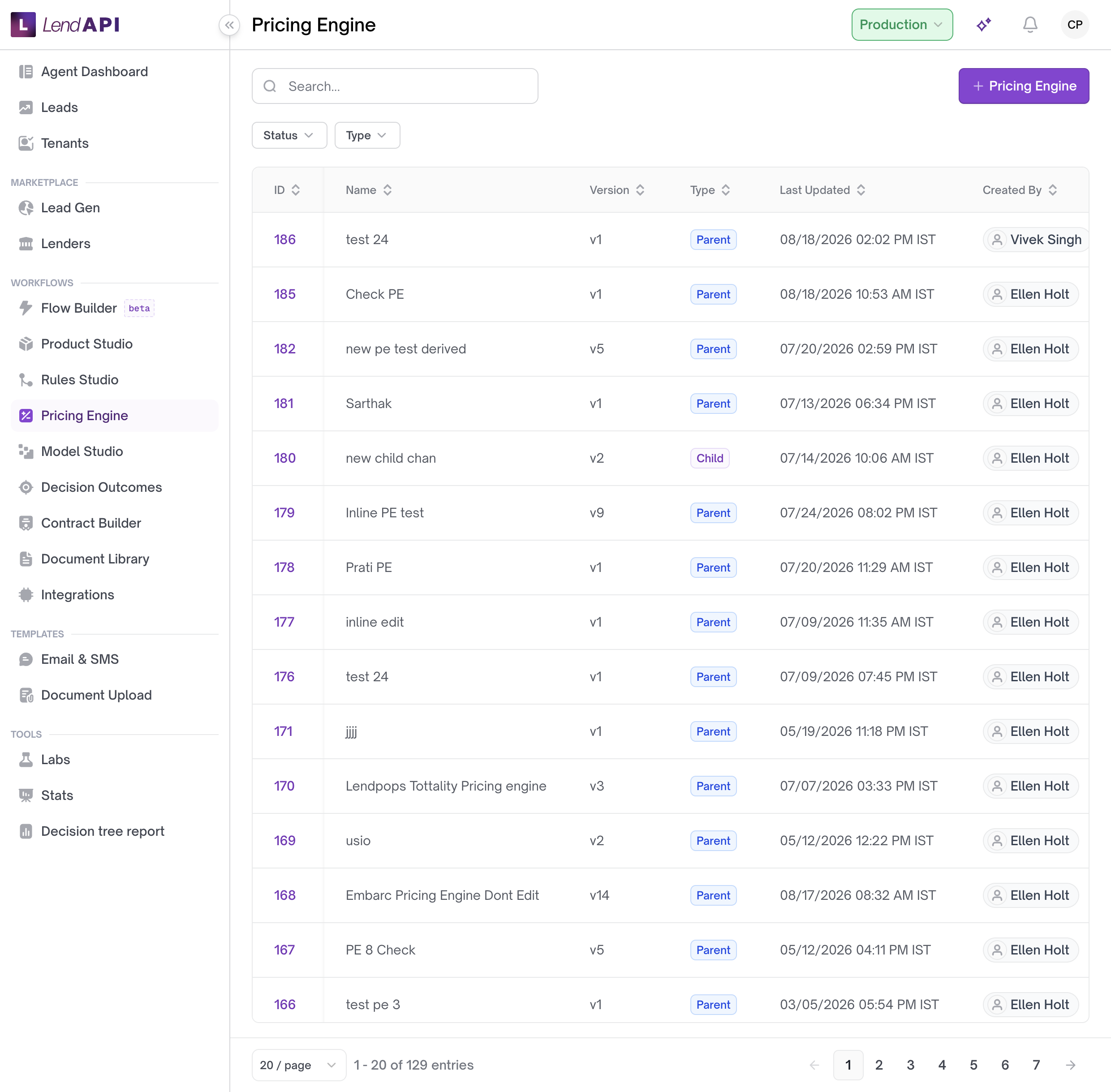
How an offer table works
An offer table is attached to one or more workflow outcomes (called “assignments”). When an application lands on one of those outcomes, the pricing engine looks for active offer tables tied to that outcome and to the applicant’s product, runs the applicant’s input variables through the table, and maps the result into an offer using the table’s cell mapping.
A few things affect which table and which version get used:
- Draft vs. published. A table can be a draft (not yet published) or published. You filter by this status when browsing tables.
- Active vs. inactive. Only active tables are used to generate offers.
- Parent and child tables. A table can be a parent or a child. A parent table can trigger a child offer table as well, so a single decision outcome can produce offers from more than one table.
- Versions. Each offer table can have multiple versions. One version is marked as the table’s default and is the one used when the engine runs. You can set a different version as the current one, which lets you revert to an earlier version if a new one causes problems.
- State-based selection. If a tenant has state-based table selection turned on, the engine picks the offer table that matches the applicant’s state instead of using the general default.
- Subtenants. An offer table can be scoped to specific subtenants. If a table is restricted to certain subtenants and the applicant’s subtenant is not one of the active ones listed, that table is skipped for that applicant.
- Products. A table is tied to one or more products. Only applications for a matching, active product are eligible for that table.
Each table (and version) stores its input variables, output variables, derived variables, and a cell mapping. The input variables are what gets sent to the decision engine; the cell mapping tells the pricing engine which fields from the engine’s result become the actual offer fields (for example, rate or term).
Worked example
A lending operations analyst at “Riverbend Credit Union” is setting up pricing for a new product, “Personal Installment Loan,” for applicants in the 680–719 FICO band.
- The analyst creates a new offer table titled “Personal Installment - Standard Tier” and assigns it to the product “Personal Installment Loan.”
- The analyst attaches the table to the workflow outcome “Approved - Standard Review,” so any application that reaches that outcome is eligible for this table.
- The analyst configures the table’s input variables (for example, FICO score and requested amount), sets up the cell mapping so the engine’s output columns map to the offer’s rate and term fields, and saves the table as a draft.
- The analyst publishes the table.
- An application for $15,000 from an applicant with a 705 FICO score reaches the “Approved - Standard Review” outcome. The pricing engine finds the published, active table assigned to that outcome and to the “Personal Installment Loan” product, runs the applicant’s input variables through the table’s default version, and returns an offer built from the mapped output fields.
- A week later, the analyst finds an error in the published version’s rate table. Using the offer table’s version history, the analyst sets a previous version back as current, so new applications immediately use the corrected configuration.
Use case: state-specific pricing
A multi-state lender wants applicants in California to see different rate tiers than applicants in Texas, without operators having to pick a table manually for each application.
The lender turns on state-based table selection for the tenant and creates separate offer tables per state, each tied to the same workflow outcome and product but marked with the relevant state. When an application reaches that outcome, the pricing engine automatically selects the table matching the applicant’s state instead of falling back to a single default table.
Best practices
- Publish a table only after the input variables, cell mapping, product, and workflow outcome are set. Draft tables are not used to generate offers.
- Keep only the tables you intend to use active. Inactive tables stay in the list but are skipped at decision time.
- Tie each table to the products and outcomes it is meant for. A mismatch means the application will not receive that table’s offer.
- If you operate in more than one state and prices differ by state, turn on state-based selection and maintain one table per state rather than asking agents to choose.
- If a new published version produces the wrong offer, set an earlier version as current instead of rebuilding the table from scratch.
- When a parent table should also produce a second offer, use a child table rather than duplicating the parent.
Managing offer tables
- Browse tables. Open the offer tables list and filter by status (draft or published), active/inactive, or type (parent or child). Search by title or by table ID.
- Review versions. Open a specific table to see its version history. Search versions by description or version number.
- Revert to a previous version. From a table’s version list, set an earlier version as the current one if you need to undo a recent change.
- Add a table. Create a new offer table and assign it to a product (or products), a workflow outcome (or outcomes), and, if needed, specific subtenants or a state.
- Edit a table. Update its input variables, output variables, derived variables, and cell mapping before publishing.
- Publish a table. Once the configuration is complete, publish the table so it becomes eligible to generate live offers.
- Preview or analyze a version. Review a table version’s configuration before or after publishing.
In this section
- Offer tables – Create, edit, activate, and delete offer tables.