Appearance
Rules Studio
Last updated: 2026–08-19
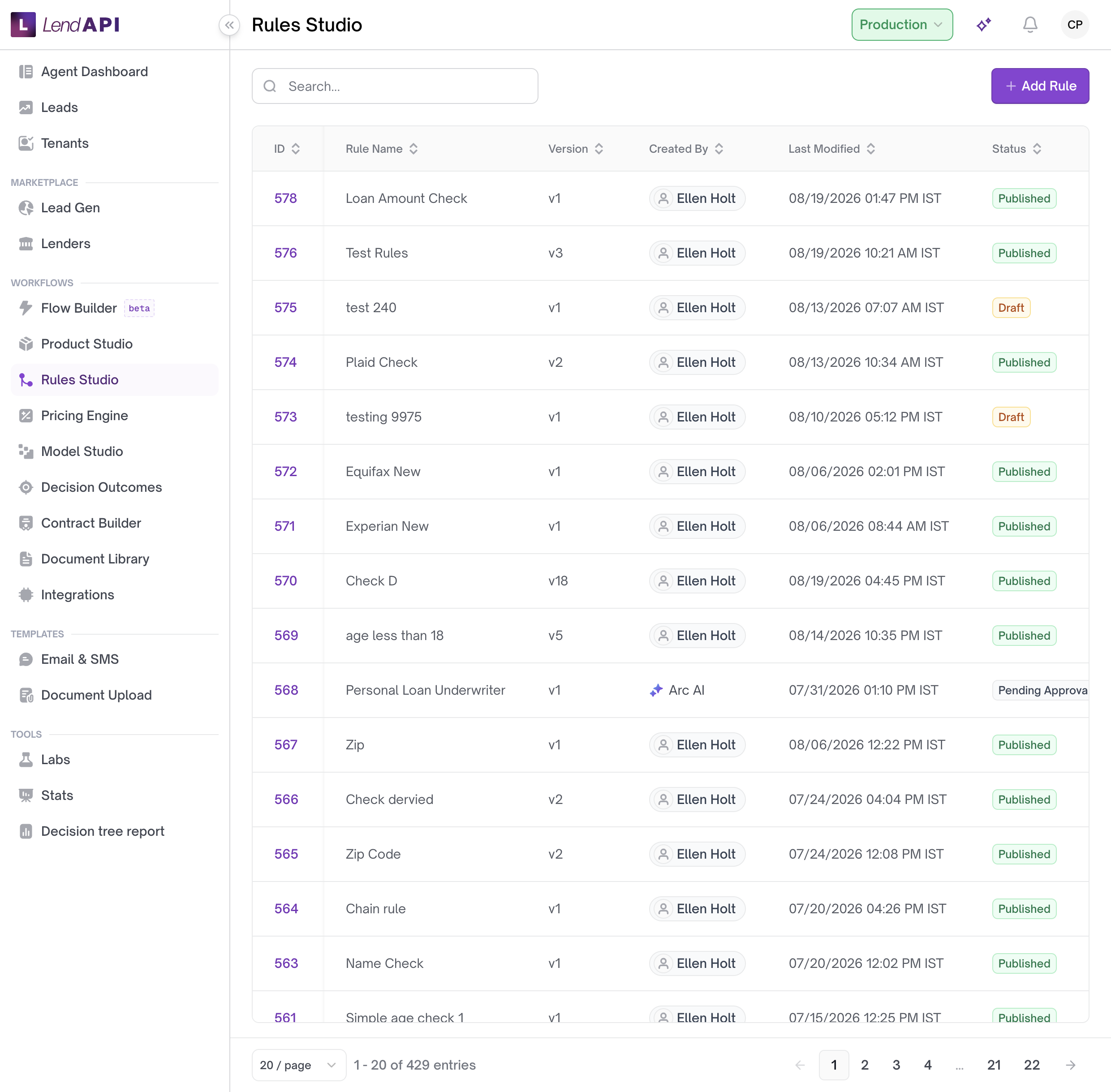
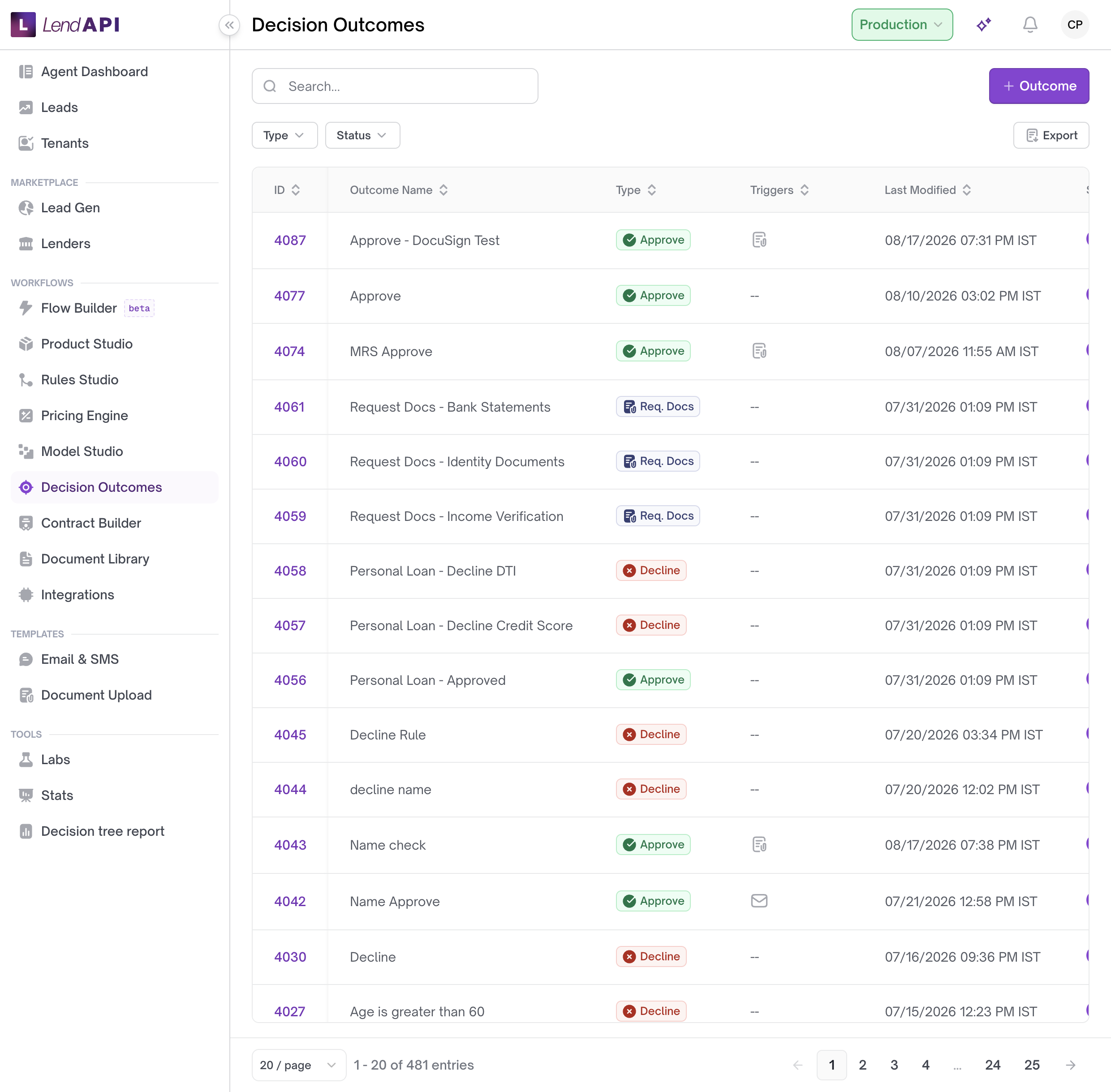
Rules Studio is where you build the decision logic that evaluates applications — the conditions that check an applicant’s credit, income, and other data, and the outcomes those conditions lead to. Decision Outcomes is the sibling screen that names the results a rule can produce (Approve, Decline, Review, Request Docs). Both sit under Workflows.
What a rule is
A rule is a decision tree. Each rule has a name, a description, and one or more versions. You build the tree by adding nodes. Each node can:
- Check a condition against a variable (for example, FICO score, income, or a value returned by a data provider)
- Assign an outcome — Approve, Decline, Review, or Request Docs (shown as “Req doc” in some views)
- Chain to another decision tree for further evaluation instead of ending the path
- Assign a task to a queue or person, with a task template and a due date
Variables used in conditions can come from the applicant’s submitted data or from external data providers connected to your tenant — credit bureaus such as Transunion, Experian, and Equifax, identity verification services such as Socure, Prove, and SentiLink, and bank data providers such as Plaid, among others.
The operators available for a condition depend on the variable’s type:
- Number variables (like FICO score or income): equal to, not equal to, greater than, greater than or equal to, less than, less than or equal to, is null, is not null
- String variables: equal to, not equal to, contains, does not contain, begins with, ends with, is null, is not null
- Boolean variables: equal to, not equal to
- Date variables: equal to, not equal to, is after, is after or equal to, is before, is before or equal to, is null, is not null
- List variables (single-select): equal to, not equal to, contains, does not contain, begins with, ends with, is null, is not null
- List variables (multi-select): contains all, does not contain all, contained by, not contained by, shares at least one element, does not share at least one element, shares exactly one element, does not share exactly one element
A rule can also be assigned to specific tenants and a product, and it can reference a pricing engine.
Versions and approval
Every rule keeps a history of versions. Each version has its own status, a default flag, and a record of who created, modified, approved, or declined it. You can:
- Copy an existing version into a new draft, so you can adjust logic without touching what’s live
- Submit a version for approval; the rule detail shows a pending-approval indicator while it waits
- Approve a version, optionally making it the default at the same time
- Decline a version, with a note explaining why
- Set a different existing version as the default
You can also edit a rule’s title and description at any time, and clone an entire rule — including its title and description — as a starting point for a new one.
Worked example
A tenant administrator at a personal-loan lender is building version 3 of a rule called “Personal Loan Auto-Decision.”
- The admin adds a node that checks FICO score (Transunion Soft) using the “Is greater than or equal to” operator against 680.
- If that condition is true, the node’s outcome is assigned to Approve.
- If the FICO score is between 620 and 679, the path chains to a secondary decision tree that evaluates income and debt-to-income ratio before assigning Approve or Review.
- If the FICO score is below 620, the outcome is assigned to Decline.
- On the branch that assigns Review, the admin attaches a task: template “Manual Underwriting Review,” assigned to the underwriting queue, with a due date.
- Before publishing, the admin opens the test run panel, enters sample applicant data (FICO 705, income $4,200/month), and runs it. The system returns the resulting action and the path the tree took, so the admin can confirm the applicant would be routed to Approve.
- Satisfied with the result, the admin submits the version for approval. An approver reviews it and approves it, checking the box to make it the default version.
Use case
A credit union wants to auto-decline applications below a 580 FICO score without a manual review step.
The credit union’s rule builder adds a node that checks the applicant’s FICO score using “Is less than” against 580. That node’s outcome is assigned directly to Decline — no chain to another decision tree, and no task assignment. Any application with a FICO score below 580 reaches this node and is declined without ever routing to an underwriter’s queue. Applications at 580 and above continue down the tree to whatever nodes handle the rest of the evaluation.
Steps: build and publish a rule
- In Rules Studio, create a new rule and give it a title and description.
- Add nodes to build out the decision tree. For each node, select the variable to evaluate and the operator that matches its type (number, string, boolean, date, or list).
- On each terminal node, assign an outcome (Approve, Decline, Review, or Request Docs), or chain the node to another decision tree if the path needs further evaluation.
- Where a path should create work for a team, attach a task: choose a task template, an assignee, and a due date.
- Use the test run panel to run sample applicant data through the version and confirm it reaches the outcome you expect.
- Submit the version for approval.
- Approve the version, optionally setting it as the default at the same time — or decline it with a note if it needs rework.
- If needed later, set a different existing version as the default, or copy a version into a new draft to make further changes.
Best practices
- Test a version with sample data in the test run panel before submitting it for approval. Confirm the outcome and path match what you expect.
- Keep a version in draft while you’re still editing it. Submit for approval only when the logic is final.
- Clone an existing rule or copy a version to draft when building a variant of logic you already have, rather than starting from an empty tree.
- Match the operator to the variable’s type — list variables have separate operator sets for single-select and multi-select, and using the wrong one can produce a condition that doesn’t behave as intended.
- Use the decline-with-note workflow to record why a version was rejected, so the next person editing it knows what to fix.
In this section
- Rules and decision outcomes – Create and manage rules and decision outcomes.