Appearance
Email & SMS
Last updated: 2026–08-20
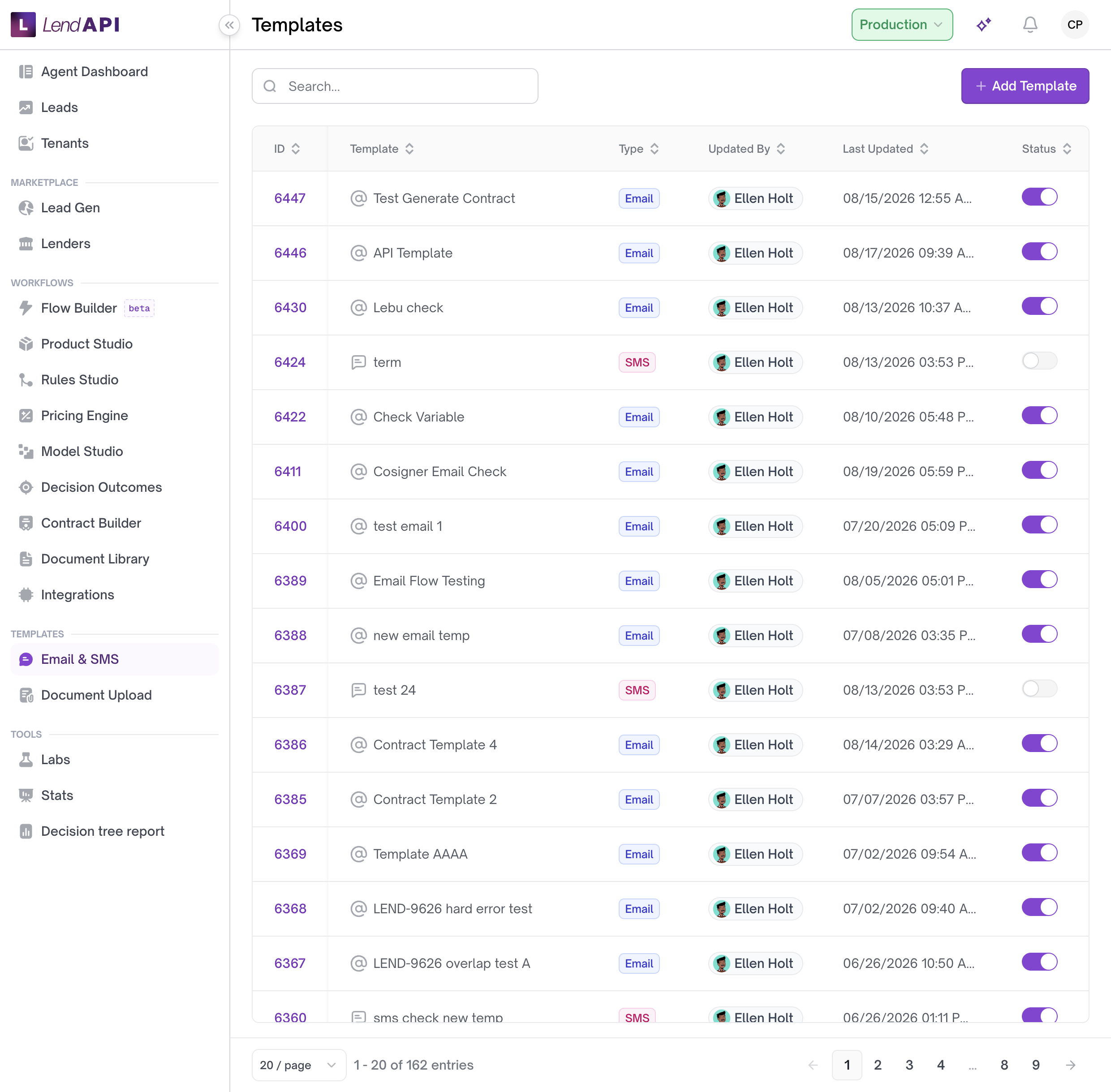
Email & SMS is the sidebar name under Templates. The page title in the dashboard is Templates. This is where you create, edit, test, and publish the email and SMS messages that go out to applicants and staff during the lending process — decision notices, contract reminders, verification emails, and more.
A template solves the problem of consistent, reusable messaging: instead of a loan officer typing a decline notice by hand every time, you write it once, wire it to the event that should fire it, and the system sends it automatically with the right applicant’s details filled in.
How templates work
Every template is either an Email or an SMS template. Both types share the same core building blocks:
- Trigger — the condition that causes the template to send.
- Recipients — who receives the message.
- Body (and, for email, a subject line) — the message content, written with merge fields like
orthat are replaced with real applicant data when the message goes out. - Variables — the specific merge fields available to a given template, pulled from the application, the applicant, or the product.
Trigger types
When you edit a template, you choose how it fires:
- Outcome — sends when the application reaches one or more selected decision outcomes (for example, Approved or Declined). You must select at least one outcome for this trigger type to be valid.
- Product — sends based on a product-specific moment: a tab being loaded, a tab being completed, the form being completed, or the form not being finished. If you choose “a tab is loaded” or “a tab is completed,” you also have to select which product tab(s) apply.
- Event — sends when a platform lifecycle event happens. The available events are: Contract is signed, Contract is not signed (fired when a contract isn’t signed within the reminder schedule), Application withdrawn, Continue Application (fired when the application continues after approval), Multi Applicant (fired when a multi-applicant invite is sent), and New Application (fired when a new application is submitted).
- Default — reserved for built-in system templates tied to core account events: Account Creation, Password Reset, Tenant Invite, Email Verification, and Application Reverted. You can edit the content of these, but the trigger itself is fixed.
Templates using the Outcome trigger type require at least one selected outcome before they can be saved. Templates using the Product trigger type require a product and a “when” selection, and if that “when” is tab-related, at least one product tab.
Recipients
Recipients combine two sources: variables (for example, the applicant’s email address or phone number, pulled from application data) and literal recipients you type in directly. Email templates validate typed recipients as email addresses; SMS templates validate typed recipients as phone numbers.
Sequences (email only)
Email templates can send as a single message or as a sequence — a set of delayed follow-ups after the same trigger, each with a delay measured in hours or days. If you choose a sequence, you must add at least one delay step. Sequence sending is available for email templates; the SMS template form does not include sequence fields.
Attachments (email only)
Email templates can include attachments — documents from the Document Library or contracts from Contract Builder. You can also turn on an option to automatically attach the offer letter/contract to the outgoing email.
The application link merge field
Email and SMS bodies can include a special merge field, , that becomes a link back to the applicant’s specific application. It can optionally point to a specific tab within the application (by tab label). When you’re working in a test environment, links generated from this field are flagged so they route to the test environment rather than production.
Variable formatting
Merge fields that carry numeric values can be configured to display as a plain number, as currency (for example, $12,000), or as a percentage (for example, 6.5%), depending on how the underlying variable is set up.
Worked example
Meridian Credit Union offers a Personal Loan product and wants applicants notified automatically when their application is declined.
- An administrator opens Email & SMS under Templates and creates a new template, choosing Email as the type, naming it “Personal Loan Decline Notice,” and adding a short description.
- The system creates the template and opens the email editor.
- The administrator sets the trigger type to Outcome and selects the “Declined” outcome.
- In the body, they write a message that includes merge fields such as
andso the applicant’s name appears correctly and they can click through to their application. - Before publishing, the administrator uses the Test panel to send a test email to their own address with sample variable values, to confirm the subject, body, and formatting look right.
- Satisfied with the test, they save the template, then publish it with a publish description like “v1 decline notice” and mark it as the default version so it goes live immediately.
- From then on, any Personal Loan application that reaches the Declined outcome automatically triggers this email — no manual send required.
Use case
A credit union wants to remind borrowers who haven’t signed their loan contract within a few days, without a loan officer having to track down each pending signature manually.
To do this, an administrator creates an email template with the trigger type set to Event, selecting “Contract is not signed.” They set the sequence type to Sequence and add two delay steps — one at 24 hours and a second at 3 days — so borrowers who still haven’t signed receive a first reminder the next day and a second reminder a few days later. Because sequences are an email-only feature, if the credit union also wants an SMS reminder for the same event, they create a separate SMS template tied to the same “Contract is not signed” event as a single message rather than a sequence.
Versions and publishing
Templates keep a version history. Each version has a version number, a publish description, timestamps, who published it, and whether it’s the current default (live) version.
- View a version to see its content without changing what’s currently live.
- Set a version as default to make it the one that actually sends.
- Copy a version to draft to continue editing from that point without disturbing the live version.
- Publish a draft with a description, optionally marking it as the new default. If nothing changed since the last publish, you’ll see a warning instead of a new version being created.
Testing and previewing
Both email and SMS templates support a test send: enter a destination email address or phone number plus sample variable values, and the system sends a real test message using the current draft content. This does not require the template to be published first. You can also preview a template’s rendered content, either with sample variable values filled in or as unfilled editor content.
Managing the template list
The template list (under Email & SMS) shows each template’s name, type, who last updated it, when it was last updated, and whether it’s active. Built-in system default templates (like Password Reset or Account Creation) are marked so you can tell them apart from custom templates, and if no one has customized them, the last-updated attribution shows the system rather than a staff member. You can search, sort, and page through the list, and turn any template on or off using its active toggle.
Best practices
- Send a test before publishing. Use the Test panel to send a real test email or SMS with sample variable values so you catch formatting problems — especially with money and percentage variables — before applicants see them.
- Match the trigger type to the moment you’re targeting. Use Outcome triggers for post-decision messaging (approval, decline), Product triggers for in-application moments (a tab being completed), and Event triggers for lifecycle events (contract signed, application withdrawn).
- Use sequences for multi-step reminders, but remember they’re email-only. If you need the same cadence over SMS, build a separate single-message SMS template per event instead of expecting a sequence there.
- Write a clear publish description every time. Version history is only useful if each entry explains what changed.
- Copy an old version to draft before making risky edits so you can iterate without affecting the version that’s currently live.
- Prefer variable-based recipients over typed literal addresses so the message reaches the correct applicant automatically, and reserve typed literals for fixed internal addresses (like a shared operations inbox).
In this section
- Email and SMS templates – Manage email and SMS templates.